Wednesday, April 22, 2009
Topic 23: Where to from here?

Tuesday, April 21, 2009
Topic 22: Web tools


Friday, April 17, 2009
Topic 21: Web-based documents
Welcome
Welcome to Zoho Writer
Your Word Processor on the Web
Thank you for signing up with Zoho Writer!
Zoho Writer sports a new, refreshing and intuitive user interface. It is the word processor designed for you, the next generation web citizen. Built using AJAX technology, it's fast and revolutionizes the way you work with documents. Having all your documents online (and offline too! we'll get back to that later!!), you have access to them from any computer, at home or at work. And no more emailing them back-and-forth to your colleagues, clients or friends for review, thanks to its instant collaboration, inline commenting and chat facilities.
It will take a lot more than this short welcome document to list all of Zoho Writer's features and hence a chosen few of the Zoho Writer's functionalities are mentioned below :
Elegant User Interface
Zoho Writer has undergone a makeover with a newly introduced tab-based user interface. The features are categorized under different tabs for easy accessibility. You have the flexibility of navigating around any of the tab features with a single click, thanks to the friendly toolbar. Here is how the new UI looks:
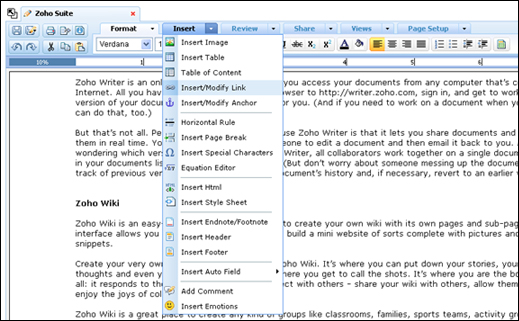
What's more, each tab in the toolbar comes with a drop down arrow that lists the features in the form of pull-down menu. Browse through the features and apply them to your document at the same time using the pull-down menu, without having to navigate away from the existing highlighted tab.
Use formatting options - Bold, italicize, underline, color your words, set background color, link to a web page, set margins, use cool smileys  and do much more. Use the same keyboard shortcuts as with any other word processing application for accessing these functions.
Enhanced Sidebar
The left-side bar, that lists all your documents (personal and shared), has some nice little enhancements in the version.
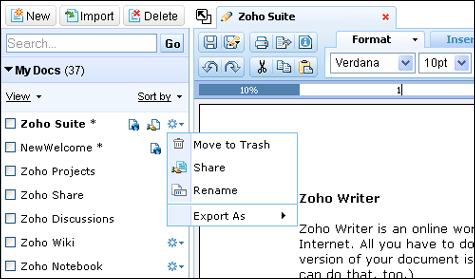
Filters:
We have added few filtered views - "Shared by me", "My Public Documents" & "All". Look for the View menu in the sidebar.
File Info and Actions:
Along side each file in the sidebar, users will find an icon hovering over which will display the file info such as users shared to, public document etc. Users also have an action icon to Trash, Share, Rename or Export the specific file.
Page View Editing
The most requested and the much-awaited feature is out with Zoho Writer. Switching back-and-forth from edit view to page view will be a thing of the past. Users can edit their documents in "Page View" mode and get to know the print-layout of the document real time.
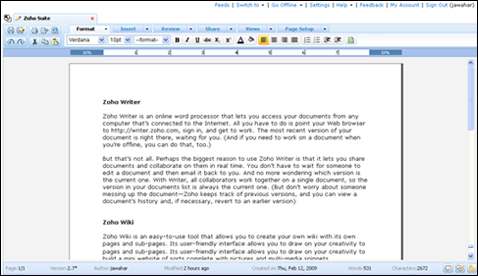
And there's no restriction on the language direction. Type content in LTR as well as RTL languages and in the same document too.
Users can also choose from among the various document page sizes - A4, Letter, Legal & Executive.
Document Info and More
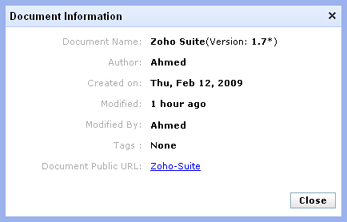 Get document related information both ways - with or without a click of a mouse. With the enhanced status bar, users will get real time info on the word & character count, number of pages, author name and more. Clicking on the "Document Properties" button from the toolbar will display the relevant document info in the form of a pop-up window.
Improved Header/Footer
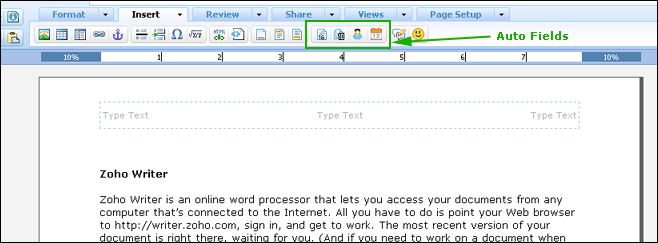
Add header/footer in your document on the fly. Choose from among the options of having them in one, two or three columns. There's an auto-field feature too that lets you insert Page Number, Page Count, Current Date and Author Name into the document's header and footer directly from the toolbar.
Document History - View & Compare Version
Messed up the current version of the document? Ever wondered if you could revert to an earlier version of it? With Zoho Writer, you can.
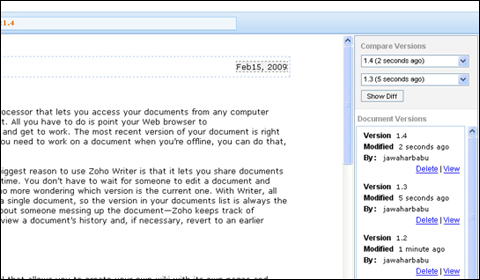
We create new versions of the document with each explicit save. At any time, you can view a document's history, seeing those previous versions and, if you want, reverting to an earlier draft.
Writer also lets you compare two versions of a document, so you can see specific changes and go back to version of your choice.
Spell Check
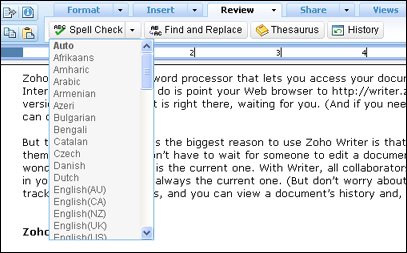
What's a word processor without a spell checker? Zoho Writer's does all the dirty spell checking work for you so that you needn't worry about whether it's receive or recieve 
Moreover, the spell-check feature is available in more than 75 different languages. So it doesn't matter whether you are typing your document in French or Swahili.
Tags as Folders
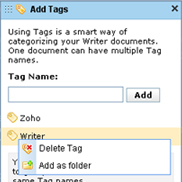
Get the best of both worlds . Tags are the new folders. Not sure whether you want to put a document in the Sales or Marketing folder?
That's where tags-as-folders come in. Make the document available in both the folders! Now, you can click on "Tag Folders" in the Sidebar to view all your tag folders. Isn't that cool?
Post to Your Blog
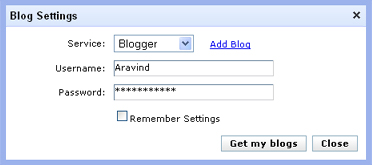 Being on the web, you can post to your blog from within Zoho Writer. As you have seen above, Zoho Writer's WYSIWYG editor is more feature-rich than a typical blog editor's. Be it Blogger.com, Wordpress.com, LiveJournal, TypePad or any blog that supports metaWeblog API, you can make the post from Zoho Writer. You can add tags and optionally make the post as a draft as well.
Comments
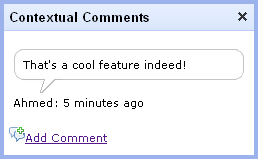 Add inline comments to particular paragraphs/sentences of a document. You & your friends (or your team members & your boss) can add comments in a document you are collaborating on.
Adding contextual comments is very useful for reviewing purposes. And this comes in handy for journalists/editors & teachers/students, in particular.
Share your Documents
Zoho Writer responds to the basic human need to connect with others - share a document with others & allow them to work on it.
When you share a document in Writer, you give others access to that document so that they can view it or, if you prefer, work on it with you. And all in real time — so when someone makes a change, the document gets updated for everyone.
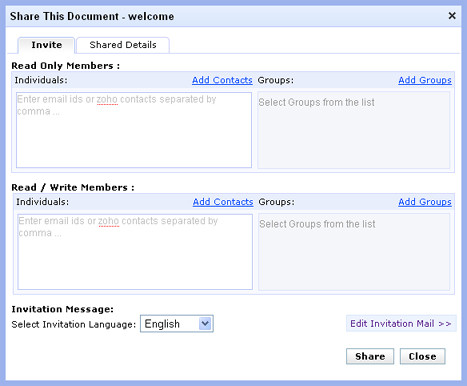
What's more users have the flexibility of sharing the document with individuals on a personal level or share them with multiple users belonging to a personal/organizational group at once.
Go Offline
Not sure you'll have internet access all the time? Zoho Writer allows you to take your documents offline. You can view as well as edit your latest 25 documents offline. Changes made during offline editing will be synced with the online version once you switch.
Integration With Other Zoho Apps
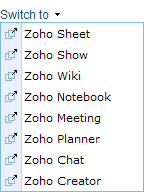
Zoho Writer comes from the widely diversified stable of Zoho. Signing up with Zoho Writer allows you to access a plethora of Zoho apps - be it our web based spreadsheet tool, Zoho Sheet, the online presentation creator, Zoho Show or the net meeting enabler, Zoho Meeting.
The integration doesn't stop with just single sign-on. You can embed sheets and slideshows. And here's more - any change done to the sheet/slideshow gets automatically reflected in your Zoho Writer document!
Those are just a few things that can be done with Zoho Writer. You will get to discover more as you work with it.
We have a very active users forum at http://forums.zohowriter.com/. And your queries, valuable feedback & suggestions are most welcome at feedback@zohowriter.com as well.
Again, thanks for signing up with Zoho!
Wednesday, April 15, 2009
Topic 20: Second life
PS-I wrote the above in a draft email to post to my blog later. The computer I'm using wouldn't let me get on to the Blogger dashboard - my ISP was sending a stream of automated traffic apparently and so Google said "We're sorry" via their apologetic Forbbiden 403 web page. Claire posted about the same problem on her blog so perhaps it was a network wide issue.
Tuesday, April 7, 2009
Topic 19: Online communities
Monday, April 6, 2009
Topic 18: Library Thing
As for the task for this topic I found it very easy to add five books I own to LibraryThing. I have added a widget of my little library to my blog - see the right handside column under my Tags (To do the same, go to Dashboard - Layout - Page elements - Add a gadget - HTML/Java Script and copy and paste the embedded widget script from the Tools tab (clickMake a standard blog widget) of your LibraryThing page into the HTML/Java Script gadget box). Something like this would be great to use to publicise new books added to a library's collection. Perhaps a widget could be added to a student intranet page and a scrolling book image might catch a student's eye. The student could click on it and be shown the details of the book and which library has it.

